Goodcard - Papercut#
Papercut (Printing, Copying and Scanning)#
Papercut is the College’s cashless payment system for printing and copying using your Goodcard. These instructions guide you through the process of adding funds for Papercut onto your Goodcard and then how to print using Papercut.
Even though they are on the same Goodcard, Papercut and Debitrak are completely separate applications and must be topped up separately - The funds are not shared between Papercut and Debitrak.
First Time Setup#
To register your Goodcard with Papercut, go to one of the large printers in one of the Media Rooms (WGH or LH Basement) and place your Goodcard on the Swipe Card Here logo until you hear a beep.
Enter your Windows Username and Password and then press Set.
Your Goodcard is now linked.#
Once registered you can now add money to your account which will then allow you to print, copy and scan. Please remember to logout from the printer when you are finished.
Adding Money To Your Account And Topping Up#
Open a browser and go to https://print.goodenough.ac.uk:9192 Remember that it’s https and not just http. You MUST include the :9192 on the end.
To login, use your Windows account and password.
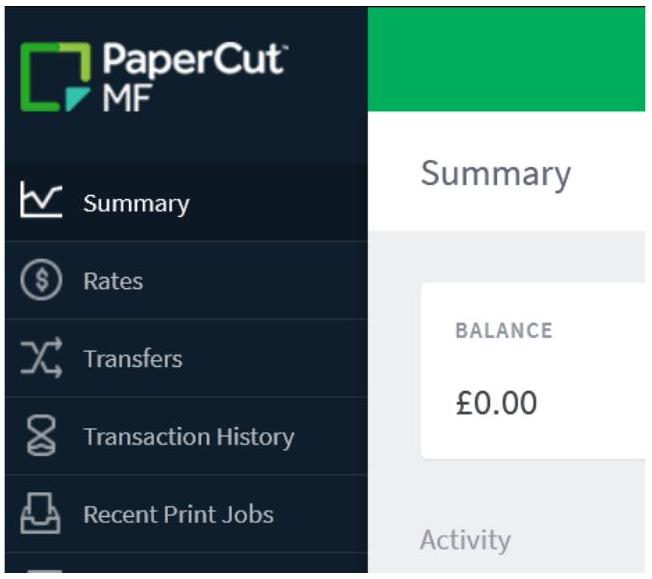
You will see your Account Summary screen.
PaperCut MF#
V summary#
Rates
Jransfers
Transaction History#
Recent Print Jobs
Jobs Pending Release
Web Print
SagePay
Summary#
| BALANCE |
|---|
| £0.00 |
| Activity |
| £0.00 £0.00 £0.00 |
To add funds to your Papercut account, Click “SagePay”
Select the amount you wish to add from the drop-down list. The available options are: £2, £5 or £10. Click Add Value to Continue.
Add payment
| Papercut username | g9999995 | |
|---|---|---|
| Current balance | £ 0.00 | |
| Add amount | □ – Select amount – | |
| – Select amount – | ||
| £ 2 | ||
| Back | £ 10 | Add Value |
First enter your address details.
Address Entry#
Remember to type in your address exactly the same way that it appears on your credit card statements; otherwise, the transaction may be declined.
| Address | Flat 2110, London House, Mecklenburgh Square |
|---|---|
| City | □ London |
| Country | □ GB |
| PostalCode | □ WC1N 2AB |
| Back | Submit |
If your card is from an overseas bank and registered to your address in your home country, please enter that address.
Click “Submit” to proceed to the payment page.
Payment Details#
| Name: | Cardholder Name |
|---|---|
| Card: | 0000000000000000 |
| Expiry: | MMYY |
| CVC: | 123 |
Submit Query#
Enter your name as it appears on your credit card, your card number, your card expiry date and the 3 digit CVC (card verification code), which usually appears on the back of your card. Then press “Submit Query.”
You should see a “Payment success” screen, showing your current balance ( £2.00 ) and the transaction amount (£2)
Payment success
\(20percut username \(200 d9999995Press “Back” to return to the home screen.
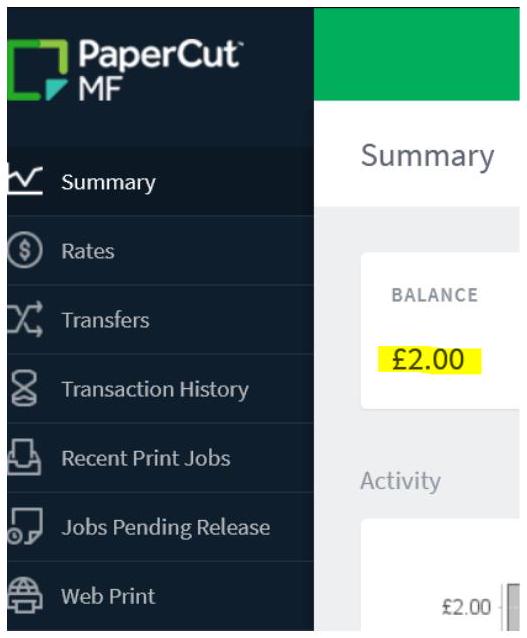
The Top Up process is now complete. You can now proceed to print via Web Print.
Printing Prices for 2024-25. New prices for 2025-26 TBC#
Printing a Black and White A4 page costs £0.05 ( £0.10 for double sided.) Printing a Black and White A3 page costs £0.10 ( £0.20 for double sided.) Printing a Colour A4 page costs £0.22 ( £0.44 for double sided.) Printing a Colour A3 page costs £0.44 ( £0.88 for double sided.) Photocopying costs are identical to the printing charges. (A single sided colour A4 copy is £0.22.)
Scanning to USB or email is Free Your printer credit will go a lot further if you always use Black and White for your prints and only switch to colour when necessary for certain pages.
Printing From PCs In The Media Rooms#
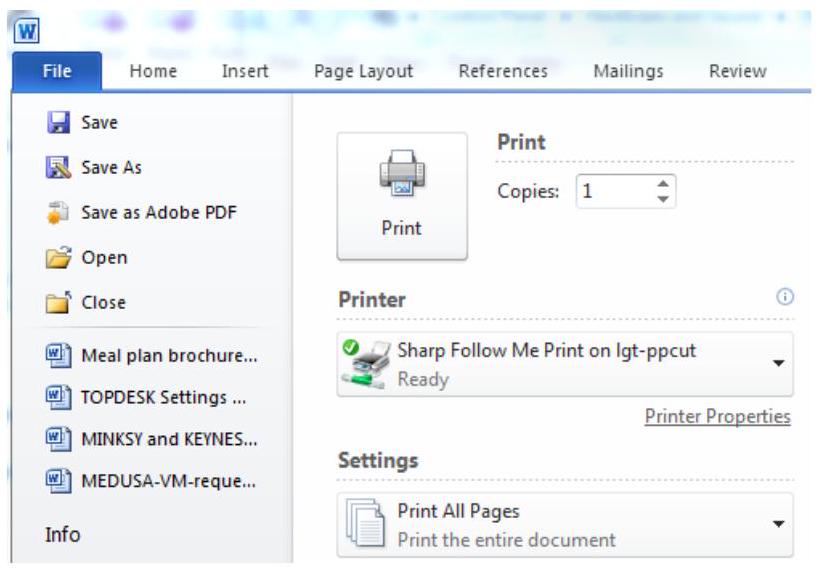
Click Print and choose the Sharp Follow Me Print on lgt-ppcut printer.
Please note that the printer default is to print in black and white and double sided.
Make changes to the printer preferences in the usual way and click Print.
A print confirmation dialog box with the total printing cost will then appear. Click $O K$ to continue.
The print job has been sent to the printer but it will not actually print out until you release it on the printer itself.
Walk over to the printer and place your card on the Swipe Card Here logo.
Login as directed on the screen and select the jobs to be released.
Your pages will now start printing. Remember to logout from the printer when you’re finished.
Printing From Your Own Computer (Papercut Webprint)#
To print via the web (you can do this using your own computer from your room or flat), login to https://print.goodenough.ac.uk:9192 and enter your Windows account details. This is your personal printing account.
Please note that you will not be able to print out from obscure applications. Common file types such as Microsoft Office and PDF are supported.
 |
||||||
|---|---|---|---|---|---|---|
| Summary | Web Print | |||||
| Rates | Web Print is a service to enable printing for laptop, wireless and unauthenticated users without the need to install print drivers. To upload a document for printing, click Submit a Job below. | |||||
| Transfers | ||||||
| Transaction History | Submit a Job » | |||||
| Recent Print Jobs | Submit Time $\begin{array}{lllll}\text { Printer } & \text { Document Name } & \text { Pages } & \text { Cost } & \text { Status }\end{array}$ | |||||
| Jobs Pending Release | ||||||
| Web Print | No active jobs | |||||
| Add Credit | ||||||
| Log Out |
[^1]Choose the printer based on the options you require (Black and White, Colour, Single or Doublesided.) Click on 2. Print Options and Account Selection in the bottom right.

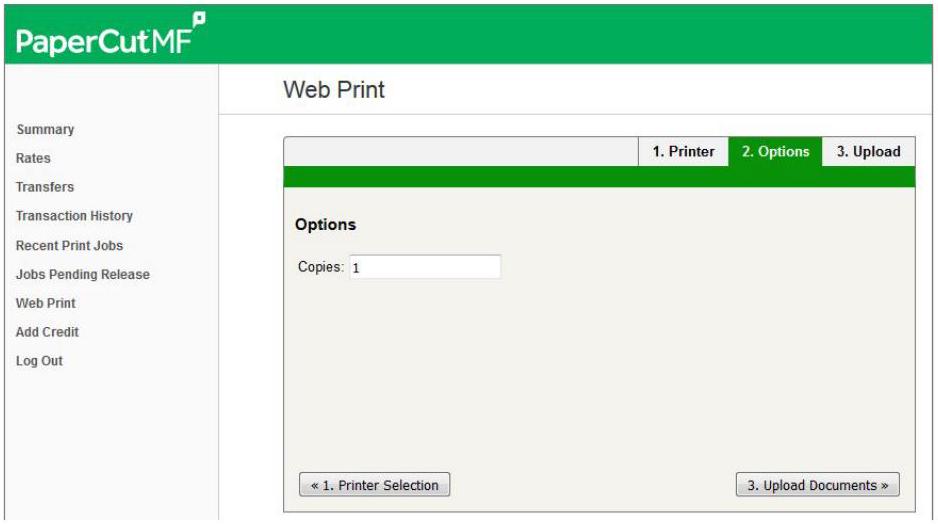
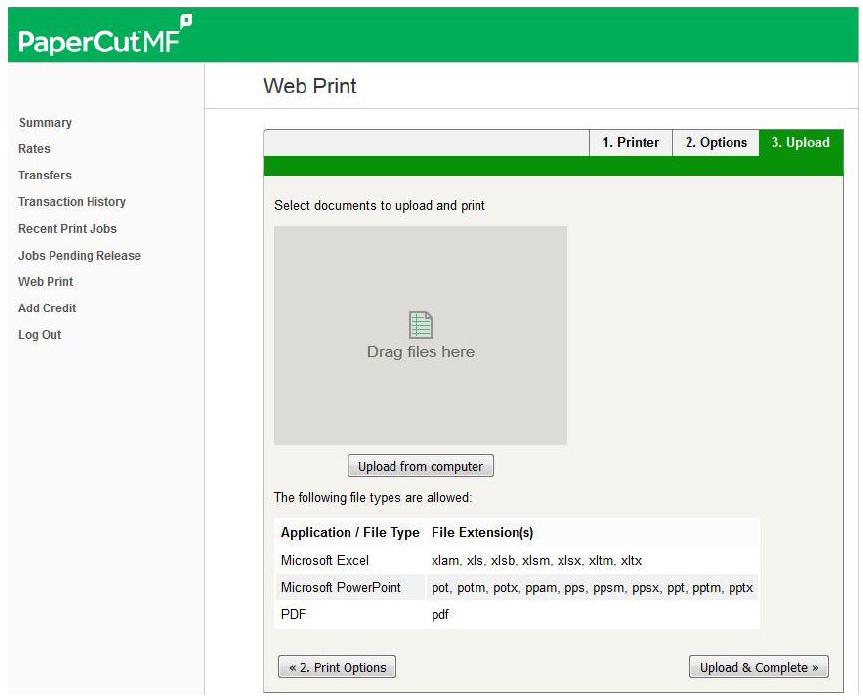
Enter the number of copies to be printed and then press 3. Upload Documents (in the bottom right of the screen).
Drag and Drop the file you want to print onto the grey region marked Drag Files Here.
Then click on Upload and Complete (in the bottom right of the screen.)
Now you just have to walk to the printer in either Media Room and release your print job.
To do this, place your card on the Swipe Card Here logo on the front of the printer.
Login as directed on the screen and select the jobs to be printed.
Printing From A USB stick#
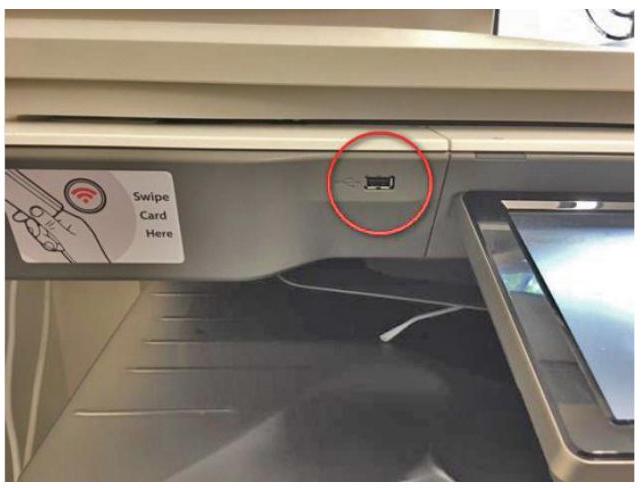
Login to the printer by touching your Goodcard on the Swipe Card Here Card Reader. Press the Device Functions button on the screen.
Insert your memory stick into the USB port (as shown by the red circle in the photo.)
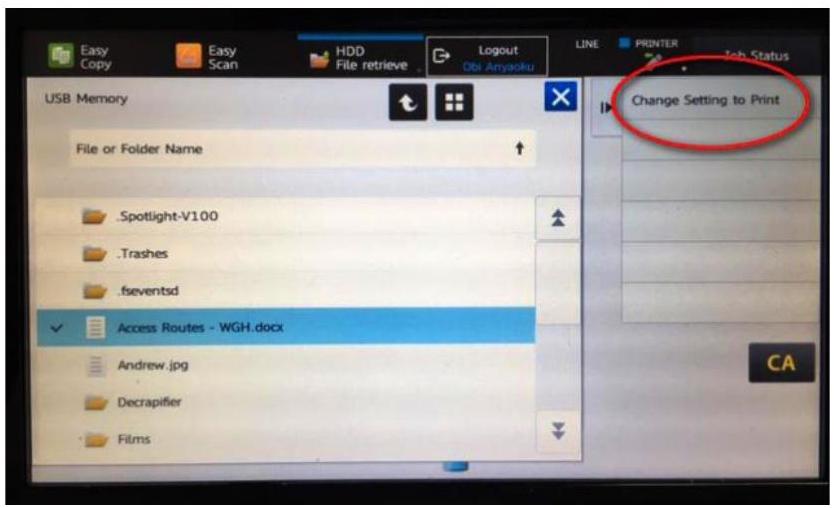
On the screen, select the Print from USB option and then select the file that you wish to print.
Once you have highlighted your file, touch Change Setting to Print and you will be able to set your print settings.

Start printing by pressing the Start button.
Photocopying#
If you wish to photocopy rather than print a document, tap your Goodcard on the reader, press the Device Functions button and then press the Easy Copy button.

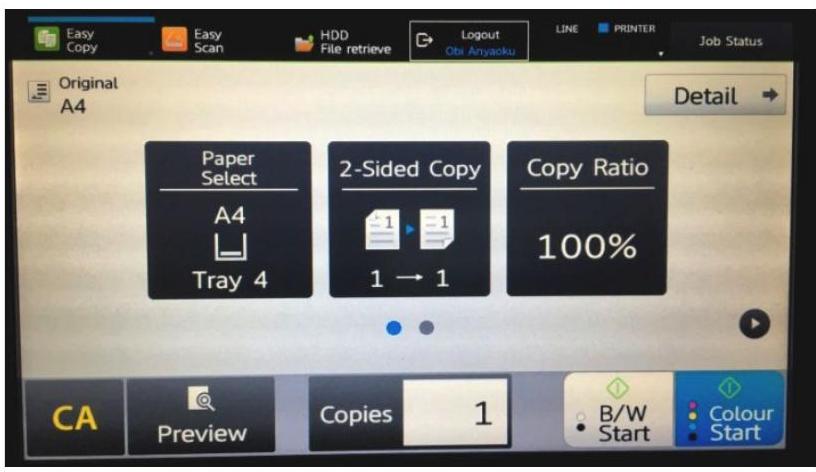
Specify if you are going to be copying single or double sided.
Copy Ratio allows you to copy from one sized page to another e.g. A4 to A3. Do not change the default tray unless you need to feed your own paper into the printer. Now choose the number of copies and whether you want Black & White or Colour. Click the appropriate Start button and then off you go!
Scan To Email#
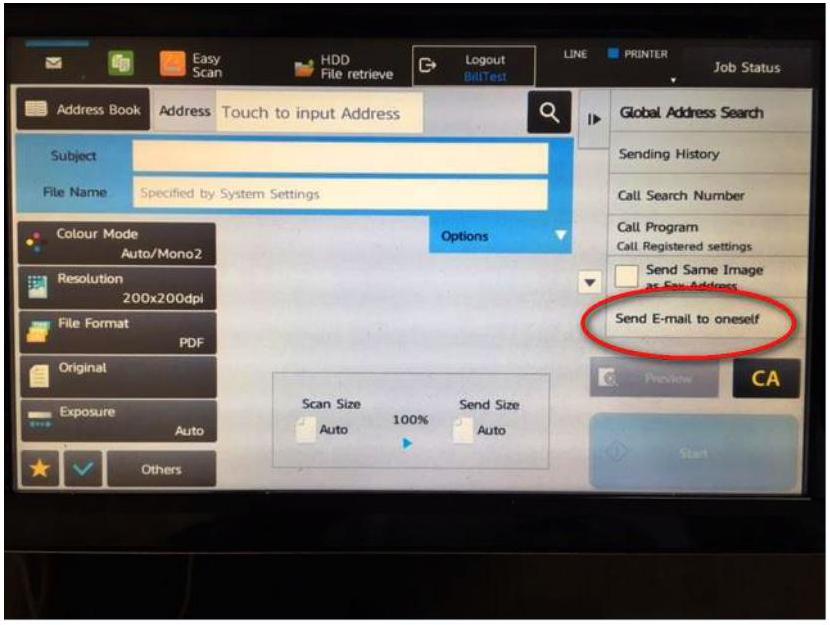
Touch your Goodcard onto the printer to login, press the Device Functions button and then select Scan to Email. Press Find my Address.
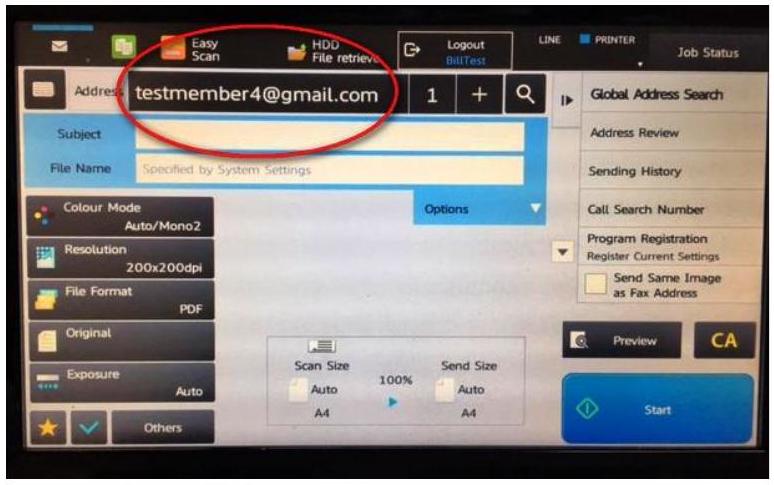
Select your email address and then press OK. Press Start to begin scanning.
Scan To USB#
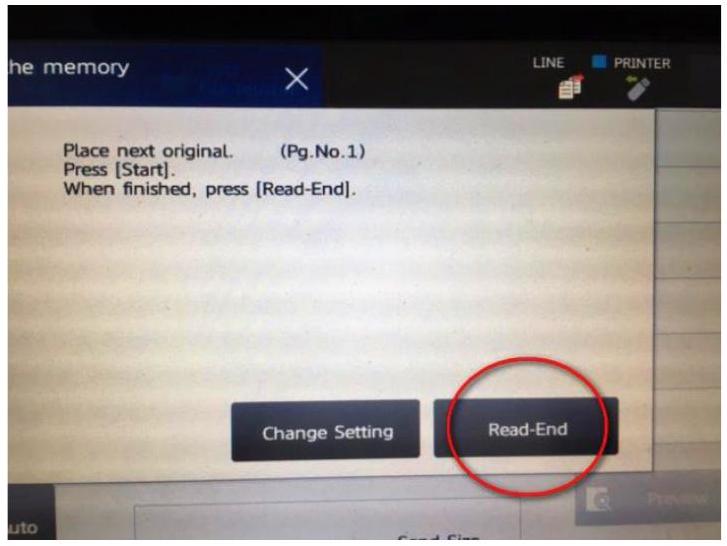
Login to the printer by tapping your Goodcard on the reader, pressing the Device Functions button and then insert a memory stick into the USB port. Select Scan to External Memory Device, enter a filename and press Start.
 Press Read-End to stop.
Faxes#
There are fax machines at the reception desks: The receptionist on duty can receive or send faxes for you. You will be asked to fill out a Fax Form and pay the cost of sending the fax in cash. The cost for sending a fax is 50 p within the UK and £1.50 for International.