IT Guide for Members 2025-26#
This IT Guide covers the IT services available at Goodenough College and how to use them. After you’ve Checked-in to Goodenough College, you will receive an email containing your Windows login and password. This is an automated process so the amount of time it can take to arrive will vary. Please check your junk email folder if you can’t find it. If you still haven’t received anything after 72 hours, please contact ithelpdesk@goodenough.ac.uk
Once you’ve received your login details, you’ll need to change your Windows password before you can login to your accounts for the various different services at Goodenough College.
College PCs are located in the Media Rooms in London House and William Goodenough House.
YOUR WINDOWS ACCOUNT PASSWORD WILL NEED TO BE CHANGED BEFORE YOU CAN SETUP ANY OTHER ACCOUNTS. YOU MUST BE ON THE GOODENOUGH CAMPUS IN ORDER TO DO THIS. IT CANNOT BE DONE EXTERNALLY.
- Open a browser and go to https://password.goodenough.ac.uk to setup the Password Reset application. Click the Change Password option and use the details that were emailed to you. Setup the security questions so that if you forget your password in the future, you can reset it yourself. (Page 5)
- Setup your Debitrak account so that you can pay for your meals and have access to the pre-paid Mealplan options. (Page 16)
- Setup your Papercut account so that you can print documents in the Media Rooms. (Page 24)
- Download and Setup the Circuit Plus app on your phone so you can use the washers and driers in the Laundry Rooms. (Page 33)
All users of Goodenough College IT services must adhere to Goodenough College’s Terms and Conditions and Acceptable Use Policy. Please see the full Goodenough College IT Services Terms and Conditions at the end of this guide. By using Goodenough College’s IT
Services you are agreeing to the College’s Terms and Conditions and the Acceptable Use Policy.
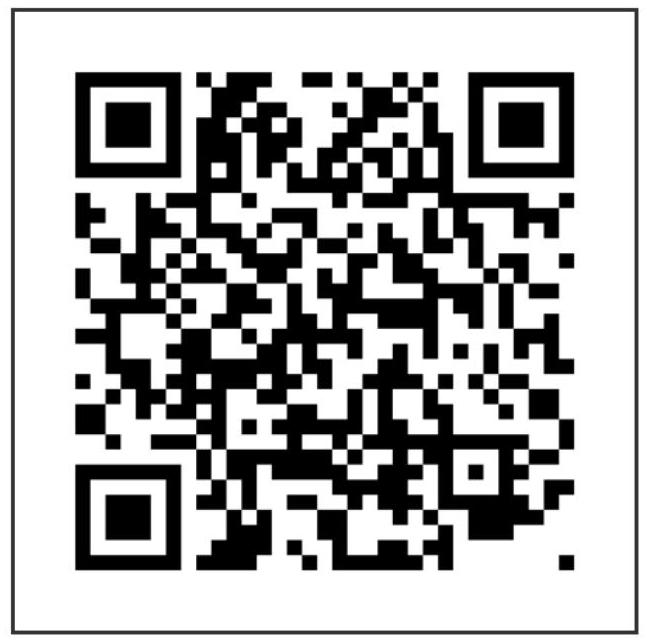
This IT Guide is also available as a pdf. Why not download it and keep it on your phone for reference?
https://portal.goodenough.ac.uk/documents/it-guide.pdf
Or you can scan the QR Code below.
(You will need a QR Code scanning app and a pdf reader app such as Adobe Acrobat on your smartphone.)